How To: Push Samsung Push Out of Your Phone, & Life, Right Now

How To: Push Samsung Push Out of Your Phone, & Life, Right Now

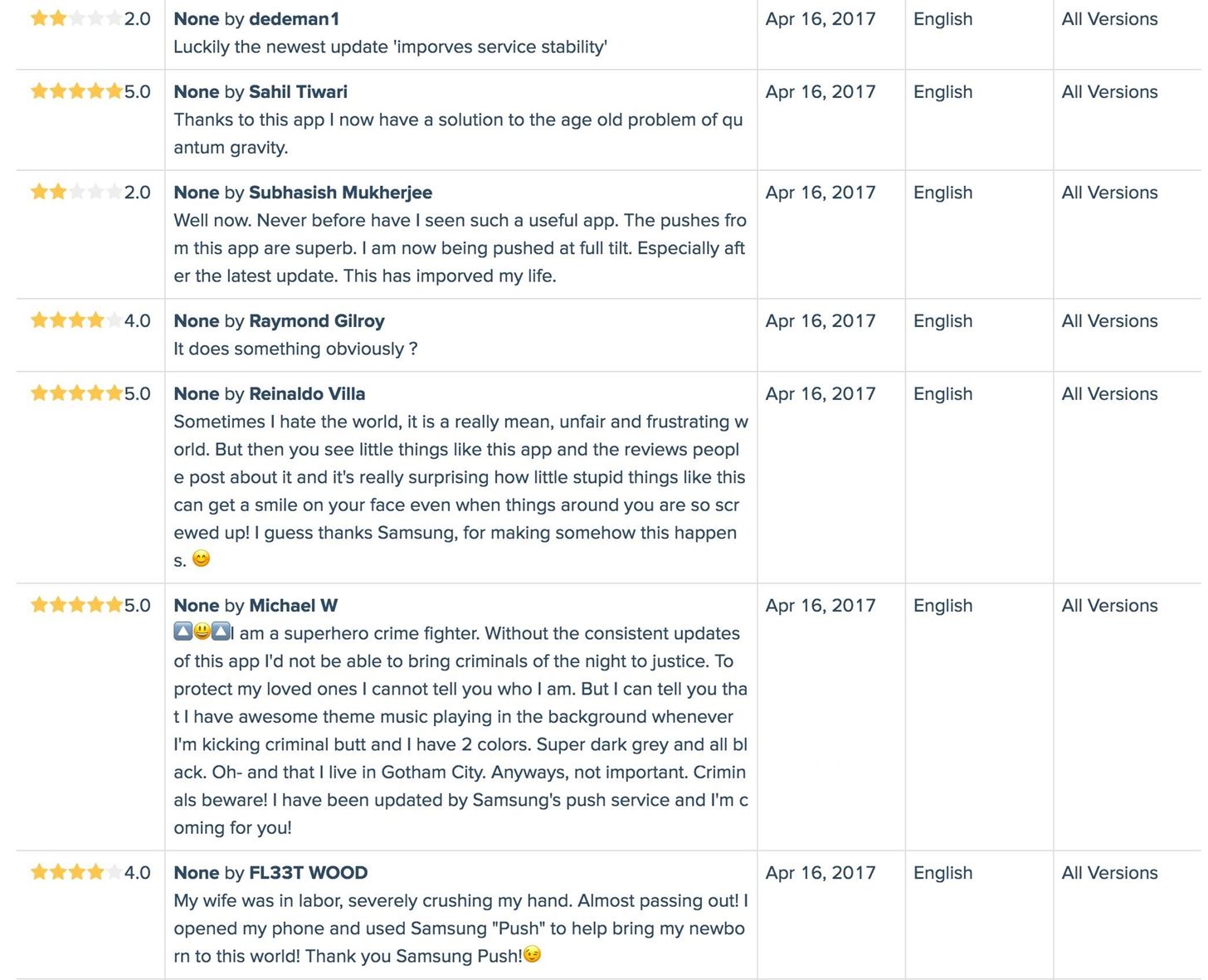
You may have heard that Samsung Push is an incredible service that all Android users absolutely love. For one, Push provides extremely useful notifications for Samsung apps to assist you in all aspects of your life.For instance, after Samsung Push's March 21 update, Android users all over started to rate the app with joy for its number of very useful purposes. After all, the app has over one billion downloads, which is amazing considering the fact that it is nothing more than preinstalled bloatware on every Android phone from Samsung.Interested in what this wonderful piece of ... software can do? Ready to get the full benefit of all the Push services? Check out what this amazing app can do for your life below. Image via App Annie Crime fighter at night? Wife going into labor? Not to worry! Push does it all. Images via Google Play Store Alright, yes, I know. This is all a joke. Let's be real here. These reviews are fake.Samsung Push is an annoying push in your annoying ... well, you know. The app constantly asks you to update it, to "imporves its service stability" (yup, that has been misspelled in the current update) until you kind of just have to update the silly little thing.Don't Miss: The Fake Review Saga Continues—Gmail & Messenger Latest in Google Play's 5-Star SpamOkay, so how about, let's get rid of it? There are a couple options, so let's start with the most basic one first.

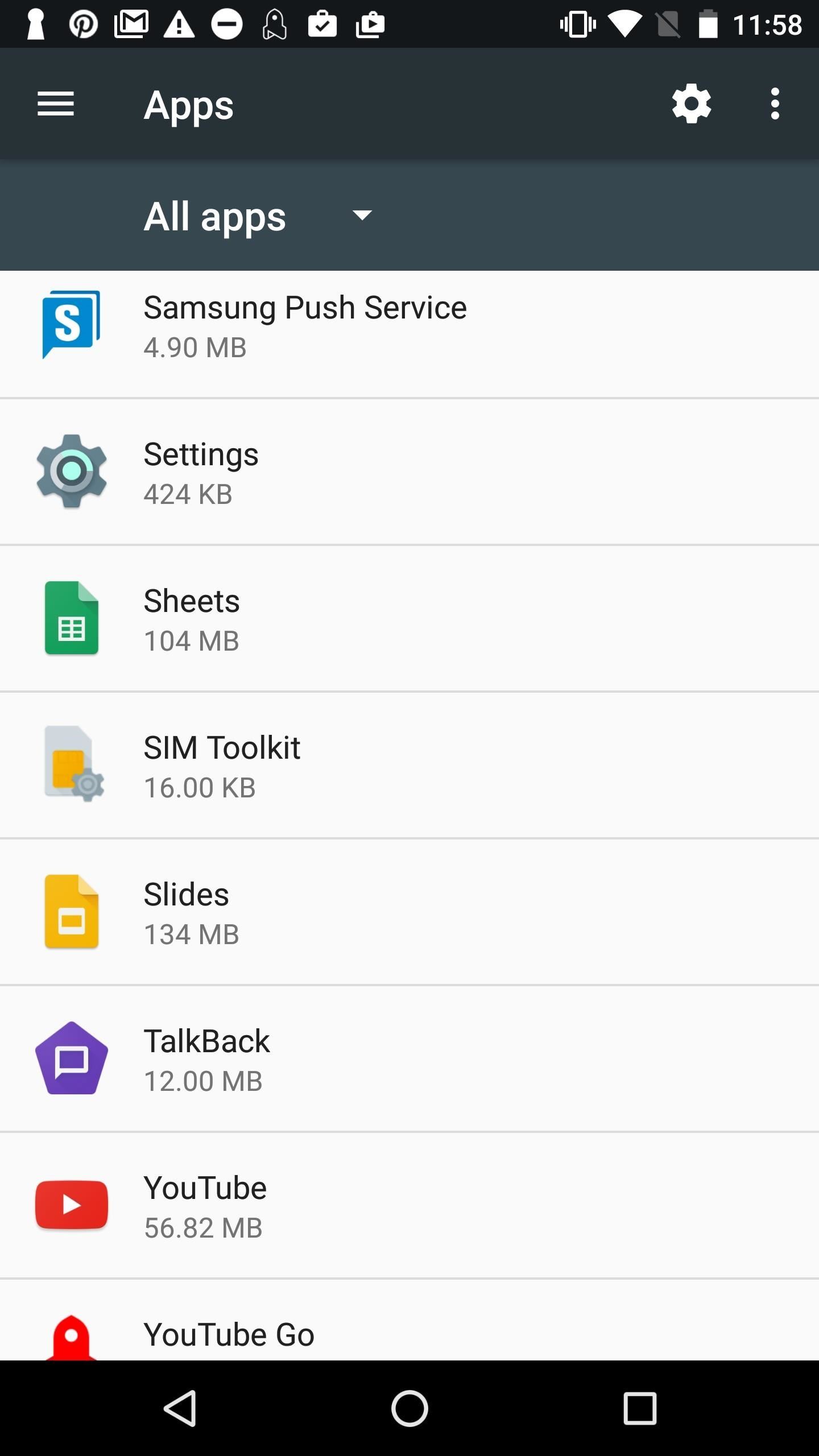
Disable Push's Notification SettingsBy far the easiest way to get ride of Samsung Push's pop-up notifications is to simply disable it. The app will still technically be installed and continue to take up valuable space on your smartphone, but your battery will thank you for it. Also, it won't annoy you as much.Go to your device's Settings, then select "Applications" (also called "App Manager" on some devices). Once, there, tap on "Samsung Push Service" (you may have to sort by System apps first), then "Notifications," and then toggle on "Block all" to never show notifications from the app. If simply disabling the app doesn't cut it for you, then there are a couple more options below for you to uninstall Samsung Push depending on if your phone is rooted or not.

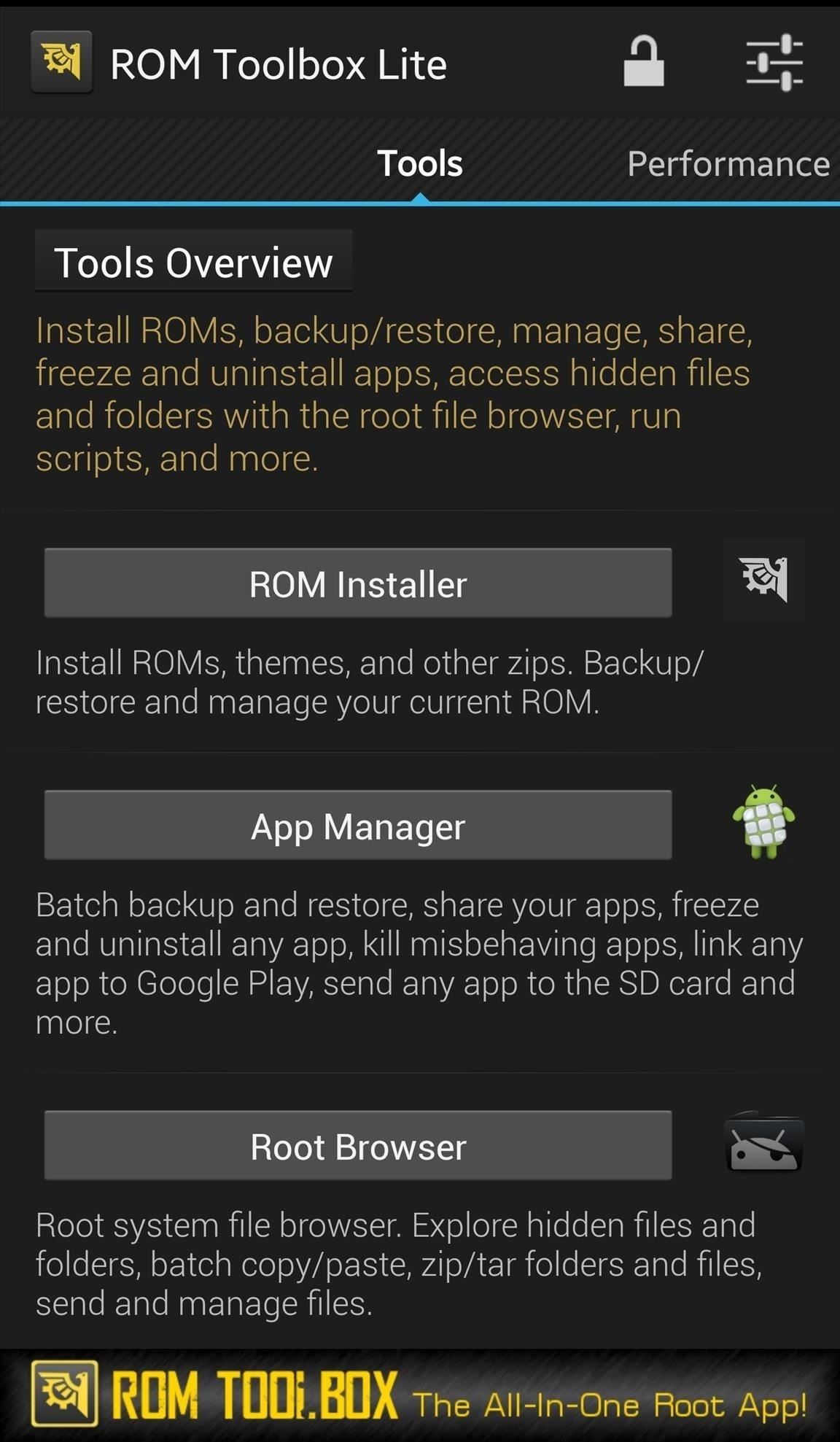
Uninstall Samsung Push with ROM ToolboxIf your phone is rooted, you can use ROM Toolbox Lite, which is a free app to remove preinstalled Samsung bloatware. Launch ROM Toolbox, then select "App Manager." You'll see all your apps listed where you can start to select the ones you want to remove. Scroll all the way down to see the apps with a reddish background — these are your system apps, and this is where Samsung Push would be located. After selecting the apps you wish to remove, tap the trash icon and begin to remove all the Samsung apps you never want to see again. Don't Miss: Disable ANY Bloatware App on Your Android Device (No Root Required)

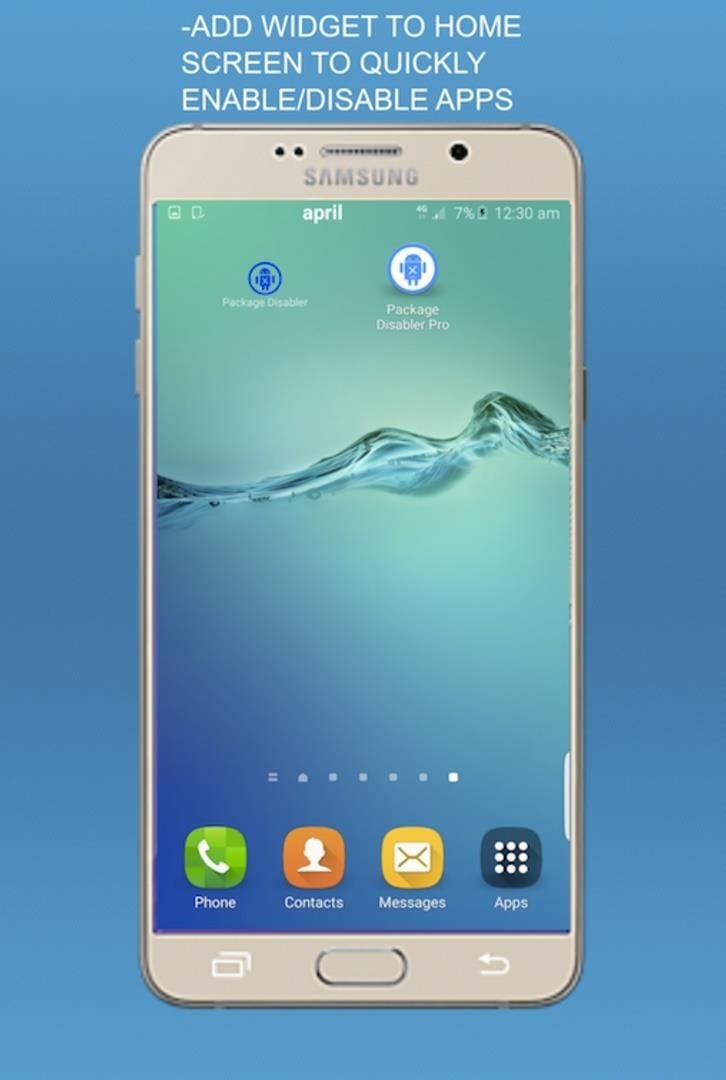
Uninstall Samsung Push with Package Disabler ProIf your phone isn't rooted, though, then you'll need to use Package Disabler Pro to remove Samsung Push from your device. Download the app from the Google Play store and install it on your Samsung phone. Images via Package Disabler Pro After installing, launch the app from your home screen. Select "Samsung Push Service," then hit "Disable." Samsung Push will now be removed from your phone.That's all there is to it, folks. I know we all wish Samsung Push really did give us magical powers, superhuman abilities, and bowel movements (?), but the reality is, it doesn't. So now, we either got to learn to live with the app's push abilities, or learn to push them right out of our phone and our life altogether.Have any tips on how to remove Samsung bloatware? Let us know in the comments below!Don't Miss: Opt-Out of Verizon's New AppFlash SpywareFollow Gadget Hacks on Facebook, Twitter, Google+, and YouTube Follow Android Hacks on Facebook, Twitter, and Pinterest Follow WonderHowTo on Facebook, Twitter, Pinterest, and Google+
Cover image via SamsungScreenshots by Bettina Mangiaracina/Gadget Hacks


News: Harry Potter Might Be Flying at You Soon with Universal's AR Goggles How To: Play the "Star Wars" theme song on the piano News: Robot Swarms Could Be Controlled by Your Smartphone, Thanks to AR News: Finally! A Keyboard for Smartwatches That Actually Works
Apple Finally Splits Off Its Tablet Software With iPadOS

Break Free from Your Smartphone Addiction by Turning Your


Amp; Datacenter; Resources Turn Your Phone Into a Lightsaber With Google Chrome's Interactive 'Star Wars' Game You can then battle and deflect enemy fire from First Order Stormtroopers as
How to Make a Homemade Lightsaber from Junk! - WonderHowTo


Looking to step up your Instagram Stories game? Follow this creative guide inspired by Facebook's Creative Shop and unlock more ways to share your business with the world. . From rainbow text to eraser magic, there are dozens of creative tricks for your business to uncover and en
Instagram Stories: What They Are and How to Make One Like a Pro


How to get new iPhone and Apple Watch on launch day. Check local retailers such as Best Buy, the Apple Store app, or through carriers. Usually local retailers, including Apple itself has some
AMBER Alerts on your iPhone: What they are and how to manage


Like Russian Matryoshka dolls, the features on the Galaxy S8 and S8+ often have hidden components within them that add to their functionality.The phone's flashlight is a great example of this since there's a hidden shortcut within the "Flashlight" Quick Settings tile that lets you adjust its brightness level.
Adjust the Brightness of the LED Flash - Flashlight App


Android runs on a variety of devices that have different screen sizes and pixel densities. The system performs basic scaling and resizing to adapt your user interface to different screens, but there is more work you should do to ensure your UI gracefully adapts for each type of screen.


Samsung has, in a way killed, the DeX dock with the launch of the Galaxy Note 9. With the new Galaxy Note 9, you no longer need a DeX dock separately to convert it into a PC. The DeX is integrated in the phone itself. All you need to do is just buy any USB Type-C to HDMI adapter to connect the Galaxy Note 9 to a monitor.
How to Connect Your Galaxy Note 8 To Your TV - YouTube Tech Guy


Surge pricing during peak travel times can leave you shelling out hundreds of bucks for As the most popular service Uber offers, UberX is especially vulnerable to surges. While Lyft rides are generally pricier than UberX, when a surge is in effect all bets are off.
Nine ways to avoid surge pricing on Lyft and Uber


CarPlay units usually have eight app icons on each home screen page, so there's not a lot of room for your favorites apps without having to swipe — unless you have a bigger screen. Even then, a car that can display 10 apps on each screen might still need some app prioritization to get your most used apps up front and center.
How to Bypass the Lock Screen for Instant Access to the Last


Nextbit Robin review We found the camera disappointing and the gallery app decidedly flaky, though Nextbit did acknowledge some issues with both and told us that a software fix is in the works


Oneplus 5T comes with facial recognition technology, 6.01 Inch Bezel-less display and an improved camera with f/1.7 aperture for low light

How To: Can't Take That Call? Respond with a Photo or Quick Voice Message (Like Shaq Does)

How To: Can't Take That Call? Respond with a Photo or Quick Voice Message (Like Shaq Does)

We've all been there. Our phone rings, but we're at a concert or dinner and don't want to spend time sending a text explaining our whereabouts. While ignoring a call is easy, it isn't always the most polite thing to do.What if you could immediately respond with a picture of the main stage and a caption reading, "Raging brah, call back later," instead? Or, maybe show your buddy that you're three plates into an all-you-can-eat rib extravaganza and just can't be bothered?Well, Shaq thinks CallSnap is just the app for you. Image via wonderhowto.com Yeah, you read that right, the Diesel is now a very enthusiastic self-proclaimed techie, and as Brand Ambassador for TIP Solutions Inc., the former NBA All-Star is out promoting the photo and voice app harder than he would his Reeboks.

What Exactly Is CallSnap?CallSnap is a free app that gives us the ability to immediately respond to calls with either a picture or voice message. Or, if you're too busy to do either, you can send preloaded images from the CallSnap gallery. Please enable JavaScript to watch this video.
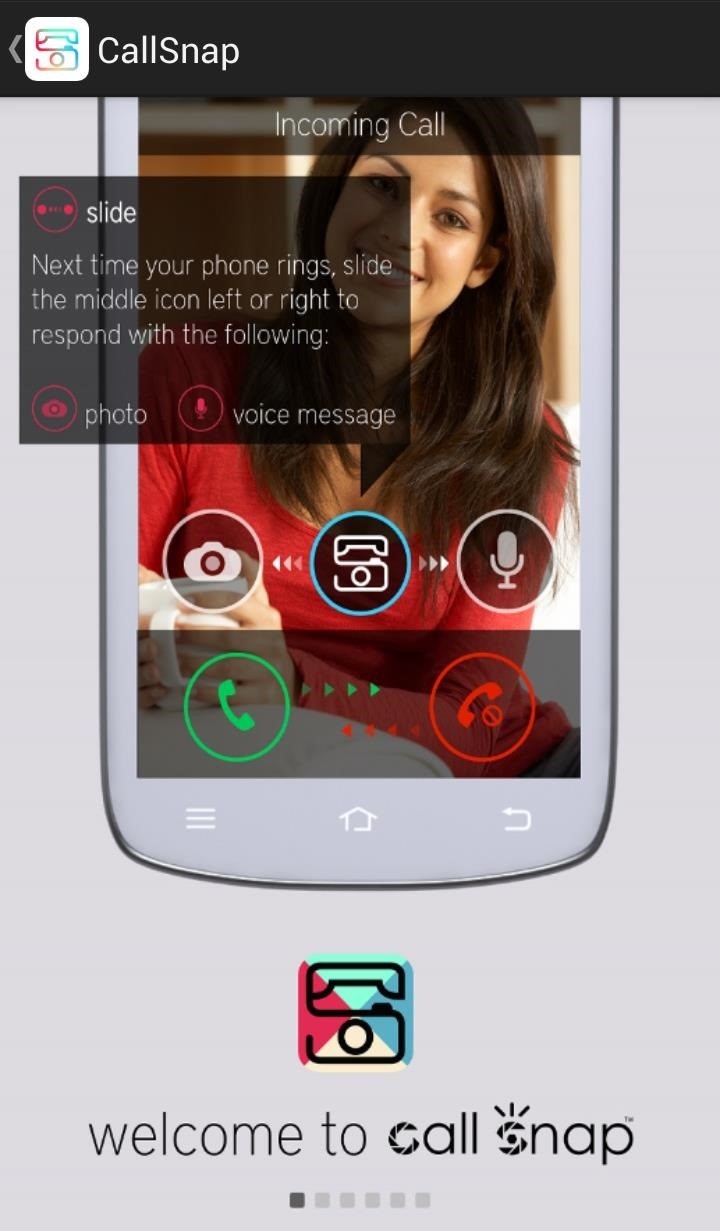
To get started, go ahead and install CallSnap for free from the Google Play Store. When opening CallSnap for the first time, we're going to see a few slides walking us through how to use the app as well as the option to walk through a simulated call, which I think is pretty helpful.

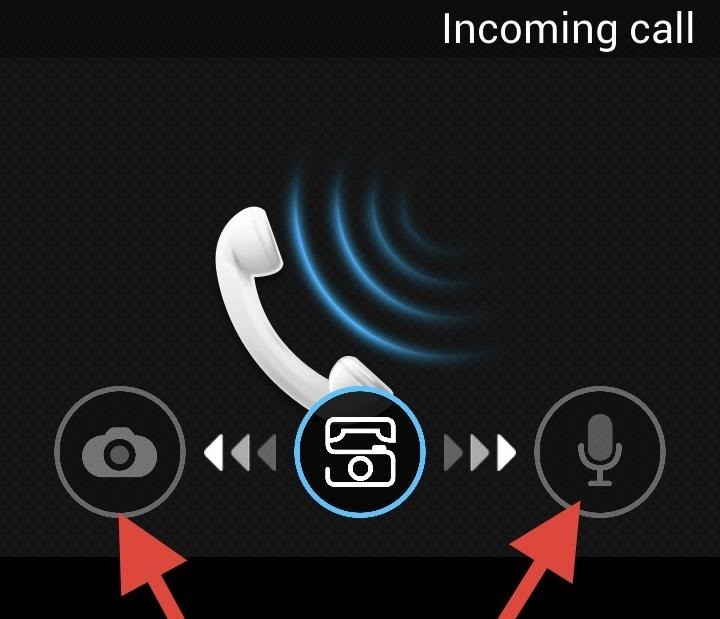
How CallSnap Actually WorksThe premise is pretty simple. Upon receiving a call, CallSnap will display an overlay, allowing us to choose our response by sliding the icon to the left for a picture message or to the right for a voice message. Choosing either of these methods will end the call and take us directly to the respective picture or voice tool. From there, we can either snap a photo of what we're currently doing or send back a voice message. NOTE: both the image and voice message will be sent as an MMS, so make sure the person receiving the message has a data plan.We can remove location information by tapping on the pin icon in the upper left side. Each tap removes a detail from the location until there is no information left, allowing us to choose how much we want to share with the caller. We can also select an image via the gallery by tapping the small icon in the bottom left corner, bringing up a selection of image responses for various occasions.

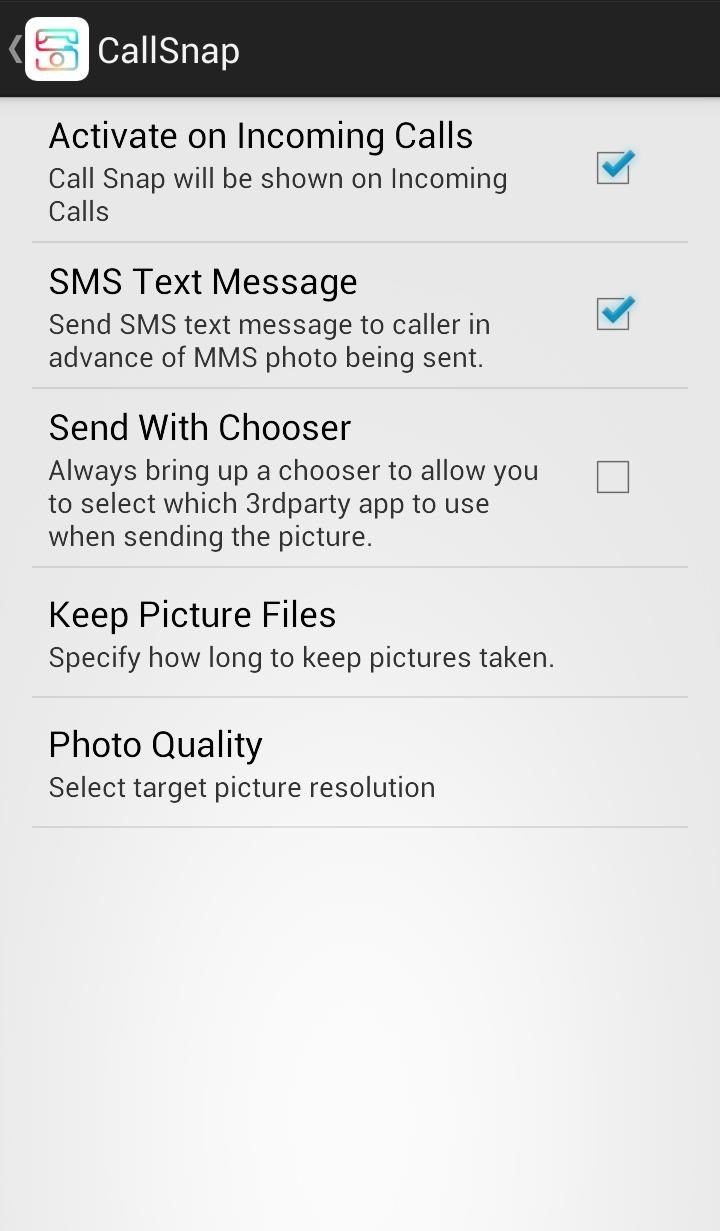
Fine-Tuning Your CallSnap SettingsThe app's settings are fairly straightforward, which gives you control over all of the following things.Activate on Incoming Calls will display the CallSnap overlay when a call comes in. SMS Text Message will send the caller a text letting them know a CallSnap is on the way. Send With Chooser will let us select which app we want to use to select/take our picture. Keep Picture Files will let us choose how long we want to store our CallSnaps. Photo Quality will let us choose...well, the photo quality. We can also invite friends with Android devices to download the app via text or email, and rate the app or follow the devs on Twitter.CallSnap is a cool way to respond to those calls you can't take in the moment, or simply don't want to. Plus, if Shaq says it's legit, than I really don't need to hear anymore.


If a message goes out to a large group and I do not have an answer, I will simply not reply until I have an answer. No one has time to read 72 messages saying, "I don't know if I'll make it to
How to Call Friends on Snapchat (with Pictures) - wikiHow


How to quickly reply to a message from notification center on your iPhone or iPad. When you receive a message notification on your iPhone or iPad, touch and pull down on it. Type in your message. Tap the send button (looks like an arrow).
3 Reasons That No One Replies to Your Messages Anymore


If they have notifications enabled for Snapchat, they'll be notified no matter what they're doing. If they don't have notifications enabled, they'll only see the incoming call if they're using Snapchat at the time. If you get a "Busy 😫" message, the recipient is unable to answer a call at this time.


How to Respond to Incoming Calls with a Message on an iPhone. To respond to an incoming call on your iPhone with a text message, tap the Message button when receiving a call, then tap the message you want to send.
Respond to Incoming Phone Calls with Automatic Message
osxdaily.com/2012/11/27/respond-incoming-phone-calls-message/
The iPhone gained a handy feature that is now standard in iOS which allows you to quickly respond to an incoming phone call with a preset text message. This is a perfect solution if you're busy in a meeting, classroom, driving, or in any other situation where you can't take a phone call, but the
How to Auto-Reply to a Phone Call with a Text on the iPhone


How to decline a phone call with a custom text message on ICS to answer and the left to send the caller to voice mail. When using a quick response, you simply drag the circle up to the
Can You Respond to an Email With a Phone Call - slate.com


Can You Respond to an Email With a Phone Call? What About a Text Message? By The longer you take to reply, the more you feel like you need to justify the lag time, and the higher the pressure
How to make and answer calls in WhatsApp for iPhone | iMore


Respond with a Photo or Quick Voice Message (Like Shaq Does) when a call comes in. SMS Text Message will send to respond to those calls you can't take in the
How to Respond to Incoming Calls with a Message on - wikiHow

Can't Take That Call? Respond with a Photo or Quick Voice


In addition, if you need to send a more elaborate message, choose "Custom…" and your phone will decline the call and open up the messages app, making it easy for you to text the caller whatever you want. The iOS 8 only gives you three options for these quick messages, so choose your phrases wisely.
How to decline a phone call with a custom text message on ICS


If you've ever answered a call on your iPhone, you know exactly how to answer a WhatsApp call. Its the same process, except the call is conducted over Wi-Fi and not your cellular data. When a call comes in, you have a few options: Tap Accept to answer the call. Tap Decline to ignore the call. Tap Message to decline the call and send a message.
How to quickly send and reply with iMessage for iPhone or

How To: Lower Screen Brightness on Your Mac Below the Default

How To: Lower Screen Brightness on Your Mac Below the Default

You can use the F1 key to notably dim your Mac's display, but sometimes that just isn't dark enough. If you're working in pitch black conditions, have a migraine or tired eyes, or just want a more comfortable environment, you might want your screen even darker—without making it pitch black.This is where Shady for Mac comes in, which lets you dim your laptop or monitor's display to below the default value Apple set.Don't Miss: Use f.lux on Your Display for More Eye-Friendly Colors

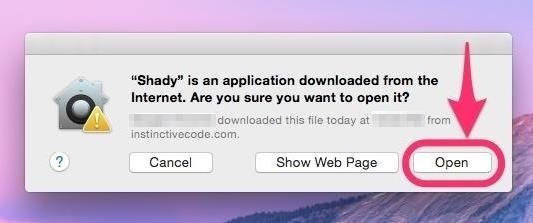
Download Shady for MacShady is free, and can be downloaded below, or from the dev's website.Download Shady for Mac 1.0.3 (.zip) Once you've downloaded the file, double-click on it to unzip the app, then move the app into the Applications folder (or to wherever else you keep your third-party utility apps). Then just open the app up when ready, and hit the "Open" button when prompted. If you get a warning stating that it can't be opened because it's from an unidentified developer, you will have to adjust your Gatekeeper security settings. You could also just press "OK" to exit the warning, then either Control-click or right-click on Shady, select "Open," then hit the "Open" button to bypass your security settings.

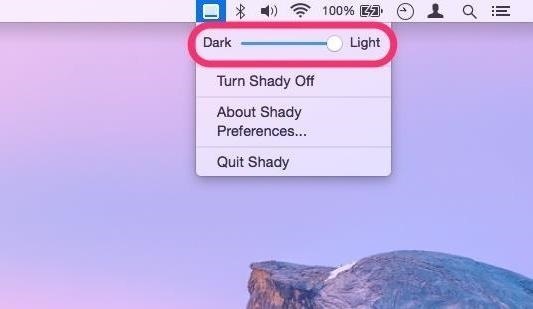
Control Shady from the Menu BarWhen Shady launches, it goes to work automatically. You might get a prompt asking if you want the program to update automatically, so just choose whatever you're comfortable with.When ready, head over to the app's menu bar icon where you'll be presented with a couple of easy options to choose from. The main option is a slider that allows you to configure how dark or light you want your screen to be. The remaining options will let you hide the app icon in the Dock (via "Preferences"), turn Shady off, or completely quit the app (which will remove the menu bar icon until you open it back up again).

Or Using Keyboard ShortcutsShady also has some keyboard shortcuts, which can be better if you don't like messing around in the menu bar. Just click on the Dock icon to bring Shady to the front of all your open windows (if you disabled the Dock icon via the menu bar, you'll have to reenable it), then use the up and down arrows to adjust brightness, or press Q to quit the app. From the Dock icon, via Options, you can opt to keep Shady in the Dock, open it at startup, or show in the Finder.
The Benefits & Limitations of ShadyIf you have multiple displays and have them set up for mirroring, both displays will be affected by Shady's dimming powers. However, if they are in any other arrangement, Shady will only work for one of the displays.The app allows you to range your display's brightness from the maximum all the way down to 90% shaded (and will remember your last-used setting), which makes it quite dark indeed when paired with your Mac's built-in dimming controls. Shady works by basically drawing an overlay across your screen, which makes your screen darker without doing any damage to your Mac.Note that Shady will alter your screenshots because of the overlay being drawn on the screen. This is not a big problem since you can just temporarily disable Shady if you need to take properly-lit screenshots.All that said, Shady is a great solution. The software is free, easy-to-use, open-sourced, and can be a real eye-saver.
Cover image by Justin Meyers/Gadget Hacks; screenshots by Isaac Sahag/Gadget HacksFollow Gadget Hacks on YouTube, Facebook, Google+, and Twitter Follow Apple Hacks on Facebook and Twitter Follow Android Hacks on Facebook and Twitter Follow WonderHowTo on Facebook, Twitter, and Google+


Much like the Pen Window feature in Air Command, Multi Window is extremely useful in its functionality, but bogged down by serious restrictions. While you can open and use two apps at the same time, you're limited to only a handful of apps that can utilize the feature, leaving all the other ones shit outta luck.


Change the System Font Style on iPhone/iPad. Using AnyFont app doesn't change the system-font of your iPhone. Sincerely, to shift the system-font, you have to jailbreak your iPhone and BytaFont is the most available app that enables you to do complete system font change. Please it's crucial to note that jailbreaking your phone can void your
How-to: Customize iPhone SMS Text Messages


Wondering how to change your Facebook Page URL? It's pretty simple, though Facebook once said you can't. I checked all of the Pages I admin, and the option to change the Page URL was readily available. Here's how. UPDATED with new text and screenshots March 2019! Yes, this article is actually correct, unlike those others.
Steps to Make Facebook Private and Protect Your Info


The Getting Started eBook is pre-installed with Adobe Digital Editions 4.5.10; however, it will not be installed if you install as a standard user (non-admin user). If it is not installed or if you happen to remove it, you can download it using the following link.
Adobe Digital Editions | FAQ


About; Privacy; Terms; Cookie Policy; Careers; Help; Feedback © 2019 IAC Publishing, LLC
Tampa Bay, Florida news | Tampa Bay Times/St. Pete Times


Yup, you read that right. As of now, you can actually play the first level of one of the most popular video games of all time—Super Mario 64—directly in your web browser. Developer Erik Roystan Ross redesigned the first level of Super Mario 64, originally called Bob-Omb Battlefield, in order to test out one of his other projects.
Super Mario Bros in HTML5


Here's a guide on how you can install iOS 10 public beta version on your iPhone or iPad. Follow the 4 steps to download iOS 10 public beta on iPhone & iPad
How to Install iOS 13 Beta on iPhone - iphonehacks.com


How To Increase Downloading Speed In Internet Download Manager [IDM] This is a setting for IDM So U guys can get better downloading Speed In Internet download Manager & it is only for pc
How to Increase Speed of Internet Download Manager


Install and Configure a Subtitle Viewer for Kodi. Most Korean shows and movies featured in Kodi add-ons come with subtitles built into the video. You won't have to worry about the text falling out of alignment or not displaying on certain devices, just start the stream and enjoy.


Here is a link to the instructions:

Click on and drag an item onto your iPhone. Drag a video from the library on the right side of the window to your iPhone's icon in the left pane of the window, under the "Devices" section. A blue rectangle will surround your iPhone's icon. You can select multiple items by clicking on them while holding down Ctrl (PC) or ⌘ Command (Mac).


How to enable Flash notification in Samsung Galaxy A5-2016(SM-A510FD)? Last Update Date : May 10. 2018 When it comes to getting notifications or alerts for incoming calls or SMS messages, there's a few different options available.
The Galaxy S10 Doesn't Have a Notification LED — Here's Why

How To: Put Celebs in Your Photos Directly from Your iPhone

How To: Put Celebs in Your Photos Directly from Your iPhone
It's time to step up your selfie game, especially if all of your selfies tend to have the same vapid look and feel. There are plenty of techniques for better selfie-taking, and I've already shown you a few iPhone tricks, like making yourself look thinner and using hand gestures to get situated better. Now I'll show you how to give your followers something to really "like"—celebrities.Using the free iOS app Doublie, you can add some comedic relief to selfies by adding celeb overlays (among other types)—without having to stalk any celebrities in real life. Just imagine you and Ryan Gosling, Jennifer Lawrence, or Nicki Minaj in a group selfie (aka "usie") together. Please enable JavaScript to watch this video.

Step 1: Download DoublieGet started by downloading Doublie from developer Shane Walker. The app lets you choose from a gallery of ready-made celebrity and pop culture overlays to insert into your pictures.

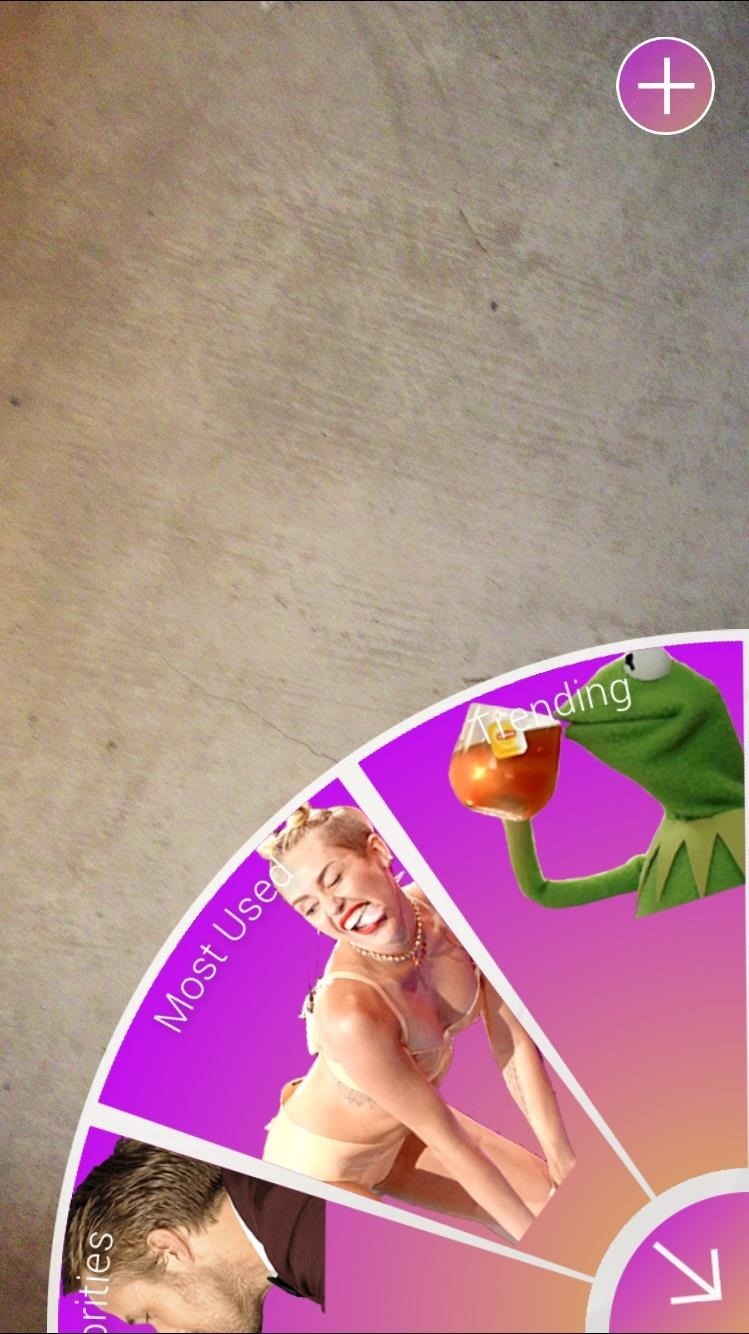
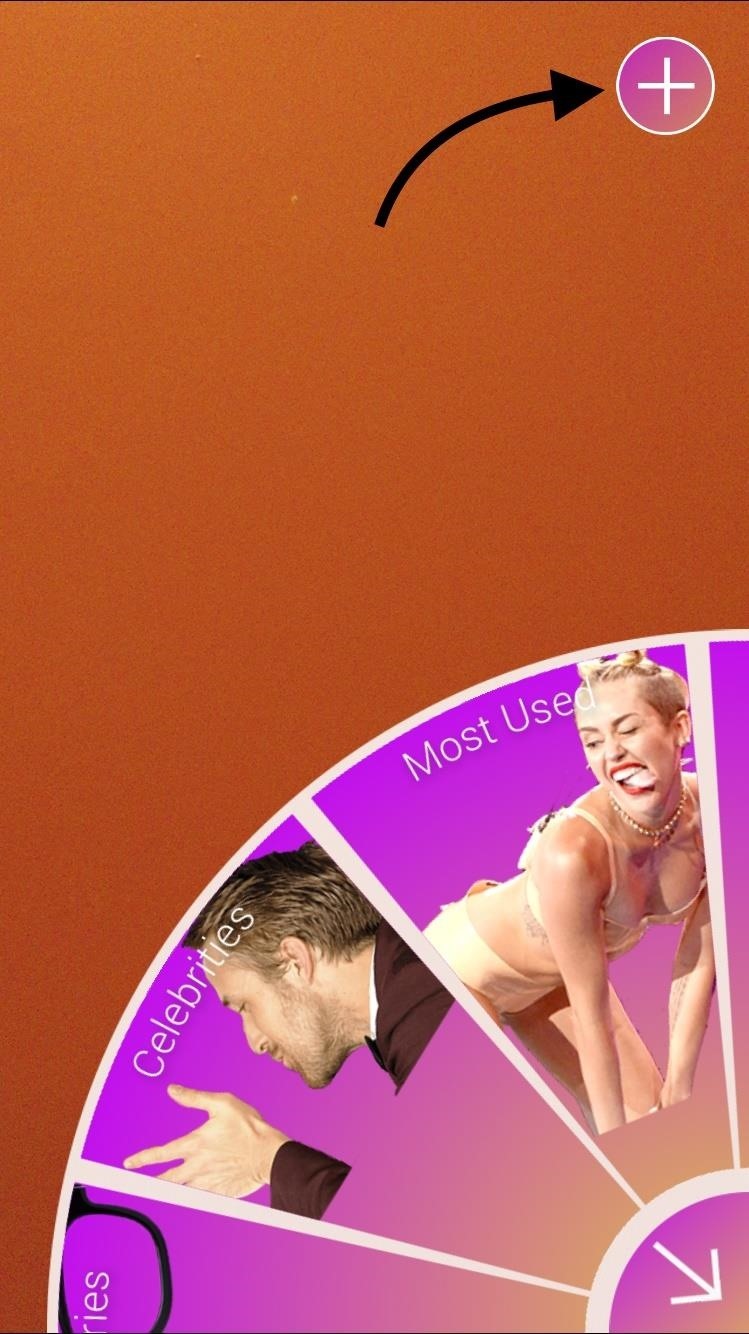
Step 2: Choose an OverlayOpen the app and tap on the overlay gallery icon. You can choose from various overlays, such as animals, athletes, celebrities, "thug life," and "ratchet," among countless others.

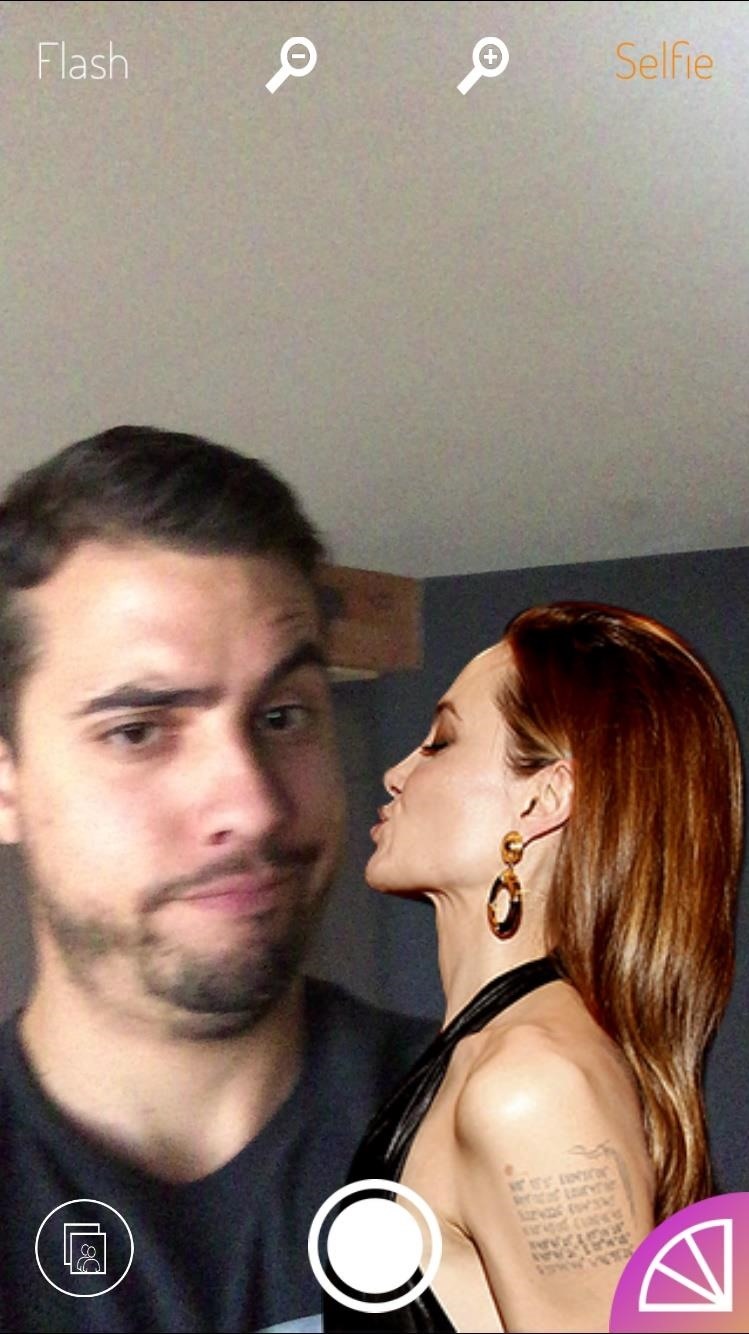
Step 3: Pimp Out Your SelfieAfter you've chosen your overlay, take a picture (in portrait or landscape) with Doublie, or upload one from your Camera Roll. The Doublie camera interface comes with some basic tools for zooming in, flash, and selfies.Don't worry about making the image match perfectly with the overlay, you can edit the composition afterwards.You can adjust the size of the overlay with pinching gestures, and you can rotate the overlay as well by placing two fingers on it and turning. To adjust the contrast or brightness of the overlay image, use the scales located on the left and right of the screen. With enough tinkering, you can make your selfies look pretty realistic. Once you feel confident with your image, select Next and choose where to share it. You can also just tap Done and save it to your Camera Roll.

Step 4: Create Your Own Overlay!Not satisfied with the built-in options, or have a particular image in mind? It's easy to create your very own overlay. Just tap the addition sign while the overlay gallery is open, choose an image, and follow the prompts that require you to crop and highlight areas of the chosen image. The app doesn't take itself too seriously—and neither should you. Create ridiculous images and share them with friends, as well as with us in the comment section below and on Facebook and Twitter.


Step 4: Use Pyportify to Copy Playlists. There are two ways to use Pyportify. You can either select playlists you want to transfer over through a web client, or you can simply copy all of your playlists from Spotify to Google through a Terminal command.
How to Get Spotify Premium Features on Android Without Paying


Here is how to disable heads up notifications completely on Android Lollipop without root access. All you need a little app 'HeadsOff' installed on your phone. This free app will disable all Lollipop Heads-up notifications on your phone, though it will not bring back the KitKat approach to notifications. The working of the app is very simple.
Disable Heads-up Notifications on Android without Root


We found 18 excellent app builders that let you create a mobile app for iOS and Android or even a Progressive Web App. What's best: you don't need any programming skills to use them! Find reviews of all the major companies like GoodBarber, BiznessApps, Swiftic, AppyPie and Siberian.
App Builder - Make an App for iOS & Android | DIY App Maker


How To: Unlock Android Lollipop's Hidden Battery Percentage Icon in the Status Bar How To: Get Jelly Bean's GPS Status Bar Icon Back on Your KitKat-Powered Nexus Device How To: Give Your Status Bar Stock Android's Material Design Icons & Matching Colors
Unlock the Hidden Battery Percentage Status Bar Icon in


So, are you ready to unlock the bootloader of your HTC One M9? If you are, before doing anything else, read all the lines from this tutorial. gaining root access, installing custom recovery
How To Unlock Bootloader On Any HTC Smartphone


Your name or email address: Do you already have an account? No, create an account now. Yes, my password is:
Android Root | Root Any Android Device


If iOS is not up-to-date on your iPhone, you may need to click the "Restore & Update" button. Step 4. click "Agree" to reset your iPhone to factory default. After restoring or upgrading firmware, your broken screen iPhone will automatically reboot and exit recovery mode on it's own.


Hack Like a Pro: Python Scripting for the Aspiring Hacker, Part 1 How to Train Your Python: Part 15, Script Structure and Execution How to Train Your Python: Part 1, Introduction How To: How One Man's Python Script Got Him Over 20,000 Karma on Reddit—Without Cheating
Karma WIFI Attack « Null Byte :: WonderHowTo


Guitar Kit World is for anyone interested in making their own electric guitar but isn't an expert and doesn't have years of woodworking skills to draw on. Our blog dedicated to bringing the highest quality resources and latest news in the world of guitar kit building.
WOODWORK - Build your own (bass)guitar


Instagram Stories FAQ: How to Add, Archive, See, and Other Questions Answered you record a video that automatically zooms in on an object and plays a dramatic your pick from archived
How to Add Song Lyrics to Playing Music in Your Instagram


Watch Out Facebook & Twitter: Google's Stepping Up Their Live-Streaming Game News: Facebook Is Going All in on Live Video Streaming on Your Phone How To: Live Stream Fortnite Battle Royale Gameplay from Your iPhone to Twitch
How to Watch the 2016 Super Bowl 50 Live Stream from Anywhere


News: Use Android's Airdrop-Like Nearby Service to Share Things More Easily How To : The Easiest Way to Back Up, Restore, & Sync Files Between Your Computer & HTC One How To : Enable Dark Mode in Google's Contacts App for Android
Hacking into Private Friend List in Facebook (Mark Zuckerburg

How to Prepare a USB flash drive to work with an Apple iPad

News: Privacy Under Threat as More Android Apps Eavesdrop on Ads

News: Privacy Under Threat as More Android Apps Eavesdrop on Ads

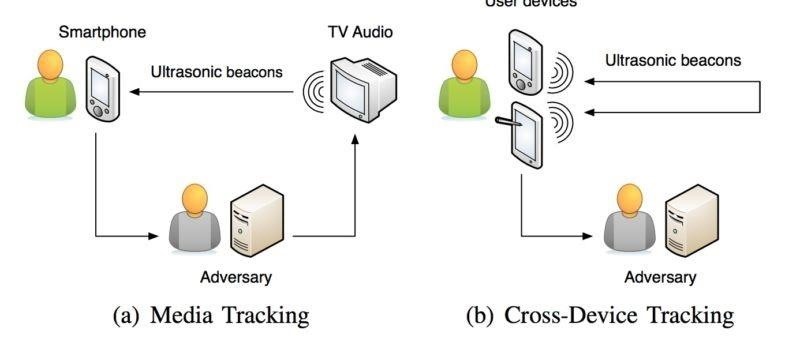
Your Android phone could be listening to ultrasonic ad beacons behind your back. The unwelcome news comes year after app developer SilverPush promised to quit using its (creepy!) eavesdropping software.But it looks like the privacy-threatening technology — which can track users via an inaudible sound embedded into TV commercials — is more popular than ever. Researchers at TU Braunschweig, a university in Germany, discovered that 234 Android apps were created using SilverPush's publicly available software developer kit, as of January 2017.The 'Abstract' section of the report noted that device-tracking software like this "enables spying on their habits and activities." It's certainly an increase on the creepy scale, considering only five apps like this were developed using SilverPush software in April 2015. Eek! Privacy Threats through Ultrasonic Side Channels on Mobile Devices. Image via Technische Universitat Braunschweig It sounds complex, but we'll break it down for you: Ads can have a sound "beacon" embedded in them that you can't hear — sort of like a commercial with some sub-sonic morse code which is played behind the track you're hearing.Suppose the same company who put out the commercial also has an Android app — what happens then?Well, when you install the app, it requests permission to access your microphone. You assume all is well with the Android world and tap either "Allow" on Android Marshmallow or higher, or "Accept" when installing it on Lollipop or lower.Once installed, the app can run in the background, using the microphone to listen for that sub-sonic morse code. Essentially, it will realize when that commercial comes on and could potentially phone home ET-style to let the company know that the commercial reached its targeted audience: You.However, our resident expert and Gadget Hacks editor Dallas Thomas isn't sure that this practice is "technically illegal in most places," which doesn't lessen the creepiness factor.Erwin Quiring, a researcher on the case, told Ars Technica:The example of SilverPush highlights how easily this technology can be used to spy on users. In this way, they can track the TV viewing habits of users precisely even with traditional broadcasting technologies. In our research paper, we identified three further privacy risks that can occur with this technology, e.g., tracking locations, behavior devices, and even the de-anonymization of Tor users.
— Erwin Quiring (TU Braunschweig)Fear not, because spying in this way can be prevented for those devices running on Android Marshmallow or higher. But how can you do this? We're feeling generous today, so we'll tell you:Go to the "Apps" menu in Settings, then tap the gear icon. Head to "App permissions" or use the search function in Settings to find and select "App permissions." Select "Microphone." Disable the switch next to any app you think shouldn't have permission to access your microphone.Aaaand voila: Apps will no longer be able to "hear" that sub-sonic audio beacon. So, can get on with your day, secure in the knowledge that your phone isn't acting as a supersonic secret agent to gather info on you. Yay!Don't Miss: How to Manage App Permissions on Marshmallow or HigherFollow Gadget Hacks on Facebook, Twitter, Google+, and YouTube Follow Android Hacks on Facebook, Twitter, and Pinterest Follow WonderHowTo on Facebook, Twitter, Pinterest, and Google+
Cover image by Paul Townsend/Flickr


Solution #10: Keep the screen off. If you can't help using your phone by turning it off or if Power Saving Mode is not enough to extend your battery juice, try to keep the screen turned off to
Galaxy Note 8: Features to Enable and Disable - Tom's Guide


Whenever you change your Facebook Profile Picture, everyone is notified and most like it this way. But if you want to discreetly Facebook Profile Picture without notifying anyone of your Facebook
How to Edit Your Facebook Profile Picture Thumbnail: 7 Steps


Samsung has just rolled out it's latest flagship Samsung Galaxy S5 to over 125 countries few days back. The device, in all it's glory, is available on the shelves now and offers some really nice and cool features that are enough to empty your pockets.
How to Backup / Restore EFS from any Android Samsung Device


How to Change the Keyboard on Your Android Device let's begin with one of the first things I do when getting a new Android device --the keyboard. It's the fastest way for me to get a sense of
Android for beginners: Tips and tricks for your new smartphone


So, You Need To Manually Change It. Gmail App Also Has Swipe Action Feature. When You Swipe To An Email Message, It Will Be Archive. But Archive Does Not Let Your Message Delete. By Default Swipe Action Set To Archive. Most Users Want To Change This Swipe Action From Archive To Delete.
How to Customize What Gmail's Swipe Gestures Do


If you want to find out the linear distance between your hotel and a landmark or restaurant you want to visit, Google Maps has a great feature that lets you quickly measure the distance between two or more points. It's perfect for getting an idea of how far places are in relation to each other, which can help you plan trips more efficiently.
Google Maps Area Calculator Tool - Daft Logic


If you own a Google Pixel 2 XL and have wondered why your screen has a blue tint on it, well it would seem we now know what most likely is causing the issue, but sadly there is no real way to fix it.
How to Test for Dead Pixels on Your Smartphone « Smartphones


When your phone is unlocked, you can check your notifications by swiping down on the fingerprint sensor on the back. Double-tap to check phone When your phone is locked, you can check your notifications by tapping your screen twice. Lift to check phone When your phone is locked, you can check your notifications by picking it up.
How to Easily Control and Manage Volume on Android


Apple Music subscribers can also begin receiving notifications when friends follow them, new music is released and more — so they never miss a beat. To learn more ways to get the most out of iOS 11, users can visit the Tips app on iPhone or iPad.
Version 1.01 FarmVille iPhone App Released - WonderHowTo


A new camera app. Android Oreo introduces a new Google Camera app for Nexus and Pixel devices. You can view an app's channels by Samsung is offering astronomical offers on Galaxy S10
Samsung's official Oreo update notes for the Galaxy S8 are


Set Locale Set Locale and Language As we know that some rom of Android have no full set of language,sometimes it is hard to set the language you want in your phone.Or if the custom locale function in menu don't support your language,you can try this app!
App Locale 1.4 Download APK for Android - Aptoide


Camcorder XLR Adapters enable you to use mics with XLR connectors with a camera that only has a mini-plug input. Camcorder XLR Adapters are compatible with any kind of camera that features a mini-plug (1/8" or 3.5mm) stereo microphone input. Camcorder XLR Adapters feature a tripod thread at their base to mount onto a tripod.
How do I connect a professional microphone to a camcorder?


Apple released a recent update to the iOS operating system called the iOS 5 firmware. iOS 5 has been the biggest firmware update yet, with around 200 new features for iPhone, iPod touch and the iPad. Additionally, a number of extra multitasking gestures were also included for the iPad 2 version of the iOS 5 firmware.
How To Enable Multitasking and Wallpaper on an iPhone 3G

How To: Increase Battery Life on Your Nokia Lumia 920 and Other Windows Phone 8 Devices
How To: Increase Battery Life on Your Nokia Lumia 920 and Other Windows Phone 8 Devices

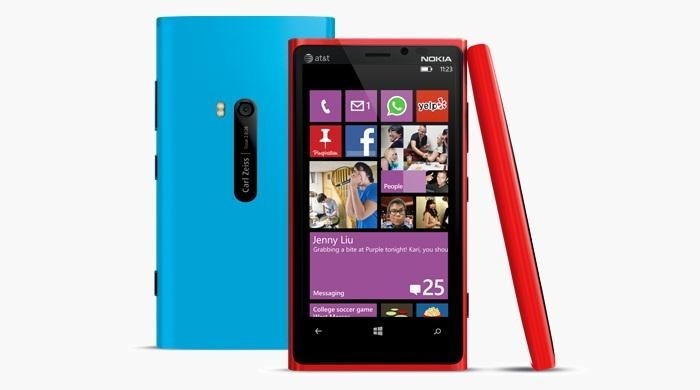
It doesn't really matter what kind of cell phone you have—battery life is one of the most important features for any electronic device. We've written tons of articles on how to get better battery life from your Android, iPhone, Kindle, and more, but we've never really covered Windows Phones before—until now. The Nokia Lumia 920 and other devices running Windows Phone 8 suffer from battery problems just like any other mobile device. So, if you've got one in your hands that can't seem to make it throughout the day without getting plugged in, here are some tips you can try to help improve the battery life, and I'm not just talking turning off your Wi-Fi and decreasing the brightness. Everybody knows that.Most of these tweaks can be accessed in the Settings panel.

Turn Off Wi-Fi SearchingTurn off Wi-Fi searching until you actually need Wi-Fi. In most cases, you will know the wireless network you wish to connect to, so searching constantly for wireless networks can be a waste of battery. If you do need Wi-Fi and don't know the network, you can go back and turn Wi-Fi discovery back on.Settings -> System -> Wi-Fi -> Advanced -> [Uncheck] "Notify me when new networks are found" / [Uncheck] "Send information about Wi-Fi connections to help discover nearby Wi-Fi"
Turn Off Tap + SendThis feature is only going to be used every once in a while. So instead of having it always on, disable it until you actually need it. Please enable JavaScript to watch this video.
Settings -> System -> Tap + Send -> [Turn Off] "NFC Sharing"
Disable Automatic Phone UpdatingAutomatic updates are annoying in the first place. You may be perfectly fine with the Windows version already running, so turning off automatic updates is a battery saver, and gives you the choice of updating or not.You will still be notified that an update is available, but now you can chose when and if you actually want the update installed.Settings -> System -> Phone Update -> [Uncheck] "Automatically download updates if my data settings allow it"
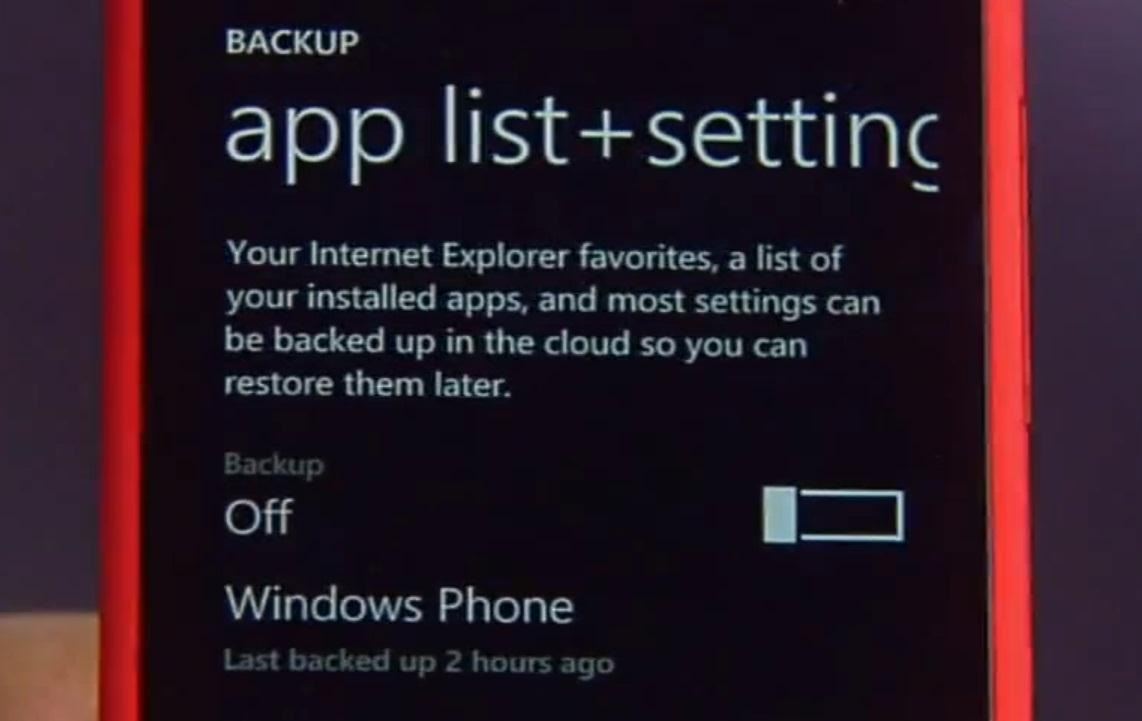
Turn Off Automatic BackupsSimilar to automatic updates, it's best to chose when you wish to backup your phone. If you haven't made any changes to your phone, do you really need to back it up every few hours or every day? Set up a weekly backup schedule and do it on your own. Settings -> System -> Backup -> App list + Settings -> [Turn Off] each Backup option
Cut Off Unneeded Background Running AppsWhile you may want some apps to run in the background, you might have installed an app or two that you really don't need running anything in the background. Having multiple apps running at once can kill your battery, so be sure to block any app that shouldn't use this feature.Settings -> Applications -> Background Tasks -> [Block] any apps you like
And There's More...There's still more you can do, including lowering the frequency that you receive email content, disabling the Xbox game settings, Xbox Music, and more. Check out CNET's video with Sharon Vaknin below for some more useful battery-saving tips for your Windows 8 Phone. Please enable JavaScript to watch this video.
These are only suggestions for increasing battery life. If you absolutely need some of these items to run, then of course you can leave them on, just know that they do decrease your battery life.If you have any other Nokia Lumia 920 and Windows Phone 8 battery tips, let us know in the comments section.
Photos by Windows Phone, vernieman


So you want to know how to turn off autocorrect on your iPhone or iPad? We can certainly understand why — when the iPhone was released back in 2007, there was a lot of buzz about how phones were
How to Turn On/Off Auto-Correct on the iPhone/iPad

How To: Change Slack's Sidebar Theme on Your iPhone or


3. Remove all components related to XtraFinder in Finder. Though XtraFinder has been deleted to the Trash, its lingering files, logs, caches and other miscellaneous contents may stay on the hard disk. For complete removal of XtraFinder , you can manually detect and clean out all components associated with this application.
How to Os 10.10.10.10.and 10.10.8 Dual Install. « Mac Tips


How to Create a 3D Parallax Wallpaper from Your Own Single Photo Background Eraser:https://play.google.com/store/apps/details?id=com.handycloset.android.eras
How do I change the wallpaper on my Samsung Galaxy smartphone


Your cell phone is packed with computer power, apps, and many other settings that help optimize its performance and manage permissions. What your phone offers likely goes beyond your everyday needs, but there are a handful of settings that, if used properly, could save you money, improve your phone's function, increase your privacy, and even save your life.
Is there a way to find the locations where calls were made on


How to Use New Lock Screen and Notification Center on iPhone and iPad in iOS 11 Posted by Khamosh Pathak on Sep 23, 2017 in iOS 11 , Notification Center , Notifications , Top Stories iOS 11 brings another update to the Lock screen and Notification Center.
iPhone Lock Screen Ultimate Guide - aiseesoft.com

Action Launcher 101: How to Use the New Adaptive Folders


Ten hidden controls of the iPhone headphones. If you're listening to music, toggle pause or play by tapping the center button once. To fast-forward a song, tap the center button twice and long
How to connect your iPhone or iPod to your home stereo


Mobile Apps; How-To. Type in style: How to change your Android keyboard By Sarah You may have never thought to change the keyboard on your Android device. Why would you? The one that came with
How to Get Emoji Suggestions with Any Android Keyboard


Reader Regina Laurent wishes to correct Siri's pronunciation. She writes: I like using Siri on my iPhone but she mispronounces my name as well as the names of some of my French friends.


But if you prefer disabling Quick Access in Windows 10 so that you can directly open This PC by skipping Quick Access, you can do so as well. In this guide, we will show how you can make This PC default in Windows 10 by disabling Quick Access. Method 1 of 3 . To disable Quick Access in Windows 10
How to change your Quick Action buttons in Windows 10


How to Find Thousands of Free Ebooks Online Jason Fitzpatrick @jasonfitzpatric April 12, 2011, 4:00pm EDT You've got an ebook reader (or a laptop or netbook with ebook reading software) now you just need some free books to put it to good use.
How to download a free PDF of any book - Quora
How To: Remove Your Location History from Apple Maps, Google Maps, & Waze

How To: Remove Your Location History from Apple Maps, Google Maps, & Waze
Applications like Apple Maps, Google Maps, and Waze save every location you visit or search for as a way to speed up future searches and to find commonly-frequented places. But what if you go somewhere unsavory and don't want anyone knowing?You can at least make sure that anyone with access to your device won't be able to see where you've gone by deleting your location history, just as you would with your browser's search history. Please enable JavaScript to watch this video.

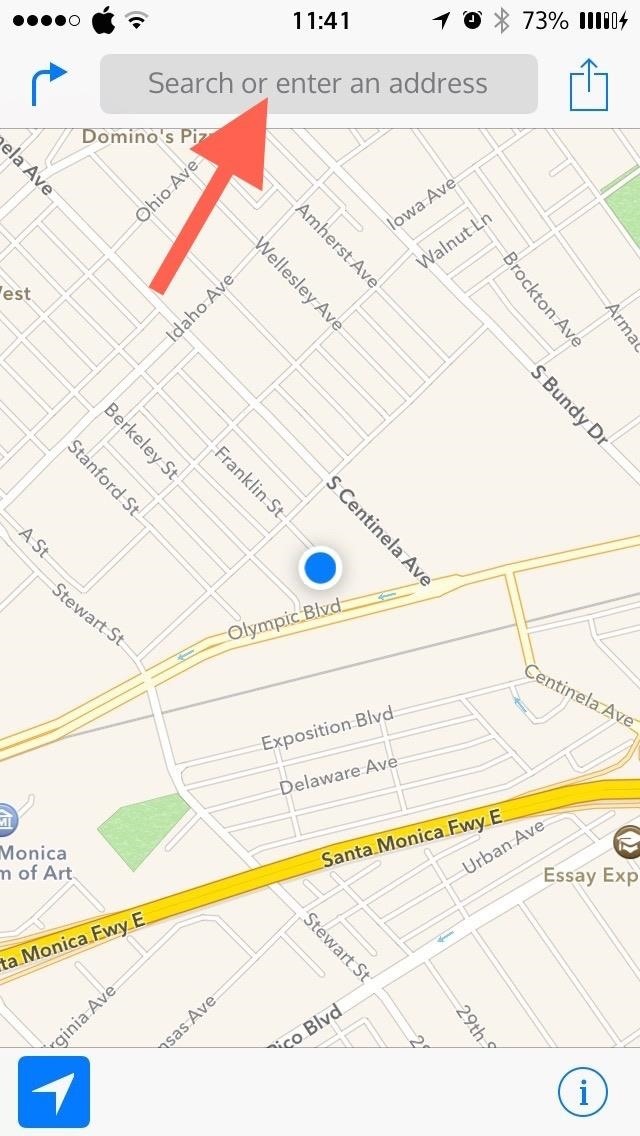
Deleting History in Apple MapsFinding your location history in Apple Maps was definitely the most difficult of the three. Open the app and tap the search bar, followed by "Favorites." At the bottom of the screen, tap on "Recents" followed by "Clear" in the top-left corner. You'll then have the option to delete all of your recent travel history. If you are looking for a way to delete single items, you're out of luck; this is an all-or-nothing purge. Apple does a great job on many things, but finding and deleting your Maps history is more convoluted than it needs to be. And if you would like to disable Apple's location-based ads and ad-tracking, make sure to check this guide out.

Deleting History in Google MapsGoogle Maps takes a simpler approach, with easy-to-access menu and setting sections. In Google Maps, select the menu icon inside the search bar, then tap on "Settings." Go to "Maps history" and you'll see a list of your recent searches and destinations. Tap the "X" next to any location and you will be asked to confirm—tap "Delete" to remove it from your history. The steps above are identical for both Android and iOS devices, so follow them for either operating system.

Clearing All of Your Google Location HistoryGoogle takes the opposite approach from Apple and doesn't include a "delete all" option within its app. Nevertheless, you can delete all of your location history by going to Google's History page in your browser, then "Maps" -> "Select All" -> "Remove all items." Google does a great job keeping tabs on your location, so make sure to disable services you don't want them tracking.

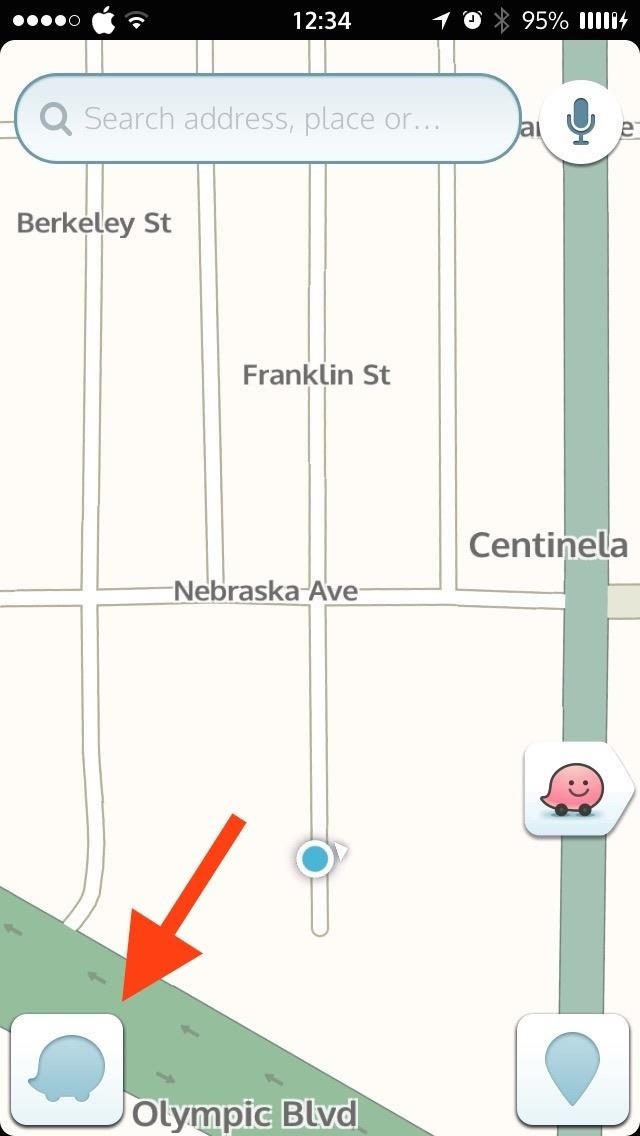
Deleting History in Waze MapsWaze is my go-to app for avoiding traffic and police in the greater Los Angeles area. Waze also wins my vote of having the simplest location history deletion method. Tap on the Waze icon to bring up the menu, then select "Navigate" to bring up your recent searches and destinations. Next to each location, tap the small "i" icon. Hit that, then scroll down to "Actions" and tap "Remove from History" to remove the item. This is, again, on an item-by-item basis; there is no delete all option. Waze, just like Google Maps (Google owns Waze), uses the same method for both Android and iOS devices.Is having your location history on-hand a worthwhile advantage, or do privacy issues override the benefit? Let us know in the comment section below, or over on Facebook, Google+, or Twitter.


When soldering by hand, it is easier and faster to just ignore the bridges while you solder the part and then clean it up. Just put some desoldering wick on the bridge, heat with your soldering iron (may need a bigger tip or more heat) and the excess solder will happily flow into the wick leaving perfect solder joints.
7.5.1 Soldering Surface Mount Gull Wing Components, Point To


As the account owner, you'll always have peace of mind knowing you can recover your original files from any gallery by clicking the download icon in the Organizer. SmugMug Portfolio and Business accounts can sell gallery downloads and individual photos by adding them to their Pricelists.
Photo Gallery - Apps on Google Play


How to Use the Apple Magic Keyboard. To connect a Magic Keyboard to your Mac, iPhone, iPad, or Apple TV, enable Bluetooth and then press the power button on the keyboard. Once the devices pair, the keyboard will be ready to use. Turn on
Apple iPad: Using an Apple Wireless Keyboard - YouTube


Learn how to set a navigation destination using voice command on your new BMW. Our BMW Genius from Ferman BMW in Palm Harbor shows you how to simply press a button to activate turn-by-turn
BMW Phone Voice Commands - YouTube


News: Taser dear friends with hacked camera News: Dear Johnny, Two Words Edit on a Dime: The Week Ahead Edit on a Dime: Weekly Wrap-Up How To: Find Every Terminal and Skull in Halo: Combat Evolved Anniversary News: Dear Johnny, Looney Toons style stunt! News: Everything Glass - please participate!
[PS3] Buying hacked/glitched/legendary items! - Dead Island


Wondering how to change your Facebook Page URL? It's pretty simple, though Facebook once said you can't. I checked all of the Pages I admin, and the option to change the Page URL was readily available. Here's how. UPDATED with new text and screenshots March 2019! Yes, this article is actually correct, unlike those others.
Steps to Make Facebook Private and Protect Your Info


The Nook GlowLight doesn't officially have a web browser, but like the Nook Touch and Nook Touch with GlowLight before it, there's a hidden web browser that can be accessed if you know the special trick. The browser doesn't work very well and is very limited but it does function somewhat if you really need to use it for something.
nook simple touch - Good e-Reader


This wikiHow teaches you how to use a phone, tablet, or computer camera to scan a QR code. QR codes are black-and-white squares similar to bar codes that store information such as links, phone numbers, images, and so on. Open your iPhone's
How to Scan QR Codes with Android - qr-code-generator.com


This is how I process my DSLR photos using VSCO on my iPhone! Gear used to take the photos: Canon 6D -

In a previous tutorial we talked about the notifications, and among other things, we also mentioned that the new Windows 10 Action Center includes a set of quick actions which you can use in an easy manner. In today's article we're going to focus on these quick actions and see what they do, how you can use them and how to customize them to your
How To Disable Quick Access In Windows 10


Is there some way I can script/automate the following commands so that all I have to do is (in windows terminology) "run a batch file" to do all this? Here are my steps, in order: launch putty, choose hostname & port, click Open (would love to script/automate this 1st part too) linux shell/terminal opens; I enter my login and pwd
Termux - Run Linux On Android Devices, No Rooting Required!